

How to connect Salesforce to Metriflow
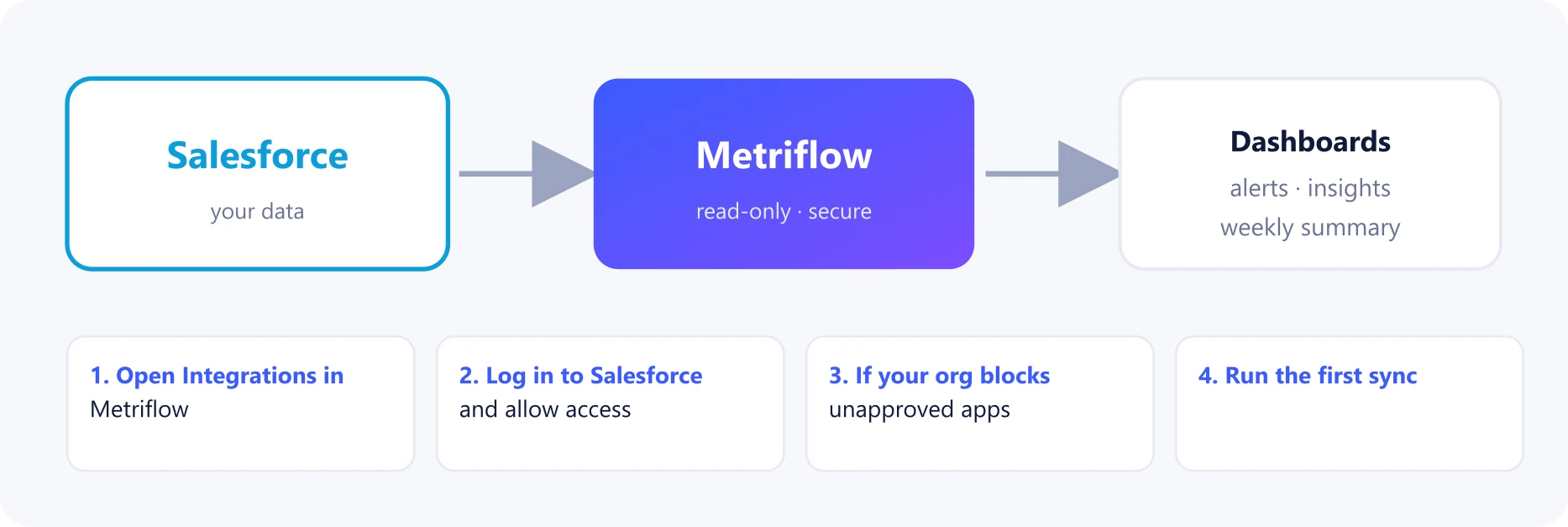
Metriflow connects to Salesforce with read-only access. It brings your leads, contacts, opportunities, campaigns and activity into one dashboard: response times, stuck leads, MQL handling and revenue by campaign. You can connect a production org or try a sandbox first.
What you get
- Leads Audit across your sales reps: response time, late or unanswered leads and stuck leads.
- Lead status history, from Salesforce Field History, for time-in-status and MQL timing.
- Revenue reports by campaign, using the opportunity's primary campaign and campaign members.
- Alerts, team pages and a weekly summary.
Before you start
- A Metriflow company account. You're its company admin.
- A Salesforce user who can approve connected apps, or the help of your Salesforce admin.
- Recommended: a dedicated integration user with the free Salesforce Integration license and read access to Leads, Contacts, Accounts, Opportunities, Campaigns, Tasks and Events.
- Salesforce API access: included in Enterprise, Unlimited, Developer and Performance editions. Professional needs the API add-on.
Step by step
1Open Integrations in Metriflow
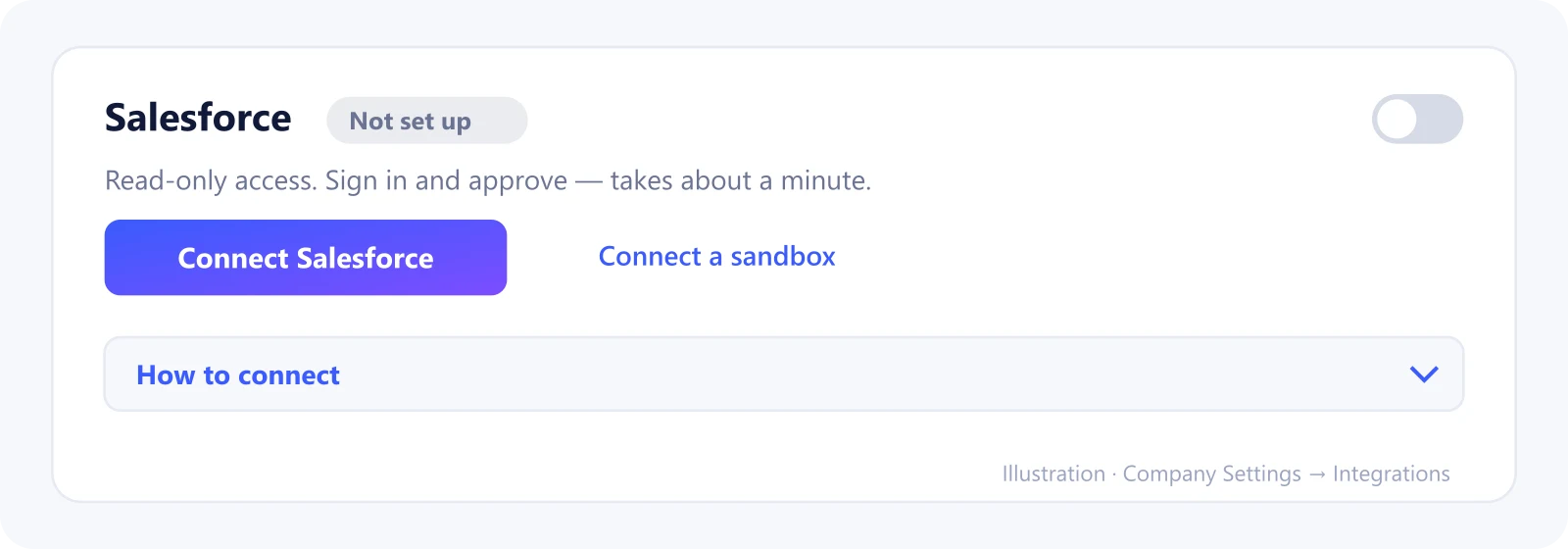
Go to Company Settings → Integrations and find Salesforce in the CRM connection card.
Click Connect Salesforce, or Connect a sandbox to test first.
2Log in to Salesforce and allow access
Log in with the integration user (or your admin user). Use your Salesforce username: it looks like an email address but is often different from your email. You can find it in Salesforce under Settings → My Personal Information. If your company signs in through its own Salesforce domain, click Use Custom Domain on the login page.
Salesforce shows an Allow Access? screen with a standard security warning (it appears for every connected app). Check that the app is Metriflow. It asks to access the identity URL service, manage user data via APIs and perform requests at any time: that means API access with a refresh token, so the daily sync keeps working. Metriflow only reads data and never changes it.
Click Allow.
3If your org blocks unapproved apps
Some orgs only allow approved connected apps. If you see an error after logging in, your Salesforce admin approves Metriflow: Setup → Connected Apps OAuth Usage → Metriflow → Install (or allow users to authorize it). Then try again.
4Run the first sync
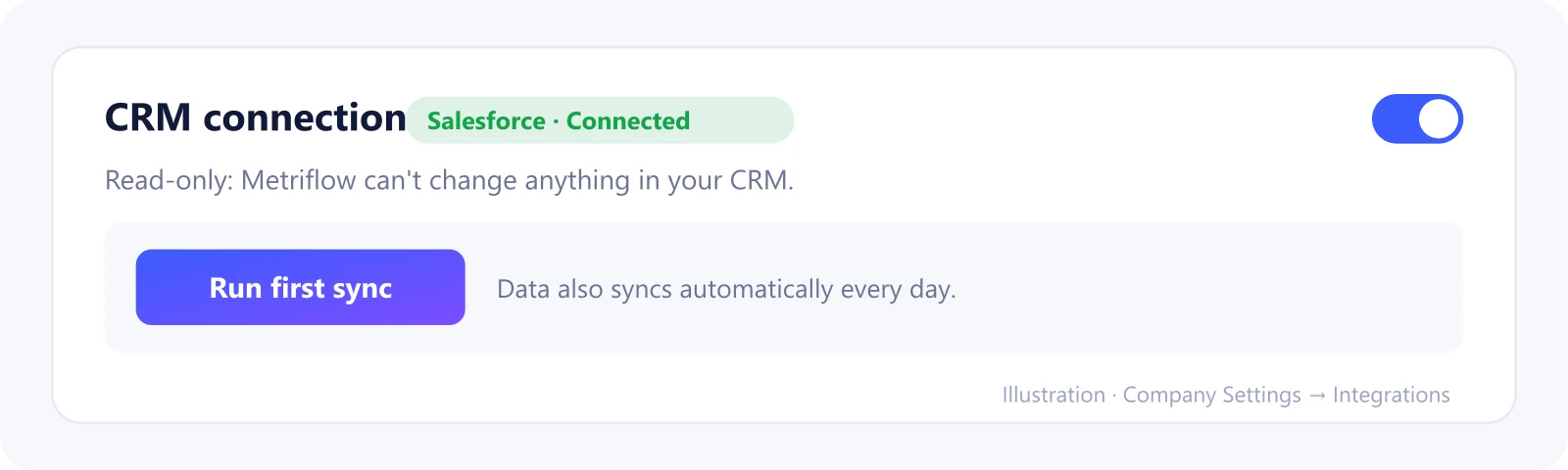
You are back in Metriflow, with a green message and the card showing Salesforce · Connected. Click Run first sync.
It reads users, accounts, campaigns, opportunities, leads (with status history), contacts, contact roles, campaign members, tasks and events from the last 12 months.
5Two settings in Salesforce we recommend
Field History Tracking on Lead → Status: lets Metriflow measure time-in-status and MQL timing. Turn it on in Setup → Object Manager → Lead → Fields & Relationships → Set History Tracking.
If you use Einstein Activity Capture, turn on 'Sync emails as Salesforce activity' (or log emails from Outlook or Gmail). Otherwise outreach emails don't reach Salesforce reports.
6Map fields and set up teams
In Field mapping, check which lead statuses mean what and which opportunity stages count as won.
In Users & teams, mark the sales reps, create teams and invite your people.
What Metriflow reads
- Users, accounts, campaigns and campaign members.
- Leads (status, source, owner, conversion) and their status history.
- Contacts, opportunities (stage, amount, close date, primary campaign) and contact roles.
- Completed tasks (emails, calls) and events (meetings) linked to leads and contacts.
Questions
Can I try it on a sandbox first?
Yes. Click Connect a sandbox. You can switch to production later.
What if we don't use Leads, only Contacts?
That works too. In Field mapping, set the 'Contact' status to New so contacts are treated as leads.
Do we need a paid license for the integration user?
No. Salesforce provides free Integration user licenses for exactly this kind of read-only connection.
Our org won't approve outside apps at all. What now?
Use the MCP connection: if you run an MCP server for Salesforce, Metriflow can sync through it. See the MCP guide.
Privacy and security
Access is read-only and limited to what the connected user can see. Tokens are encrypted, data is separated per company, and you can disconnect at any time. Privacy Policy
Related guides
Ready to connect?
Sign in and go to Company Settings → Integrations. Questions? Contact us.
Open Integrations