

How to set up the Metriflow summary report
The summary report emails each manager the numbers that matter for their own scope — every day, every few days, every week or every month, as you choose: new leads, response times, stuck leads, pipeline and revenue. With AI insights on, it opens with a short AI take on the period.
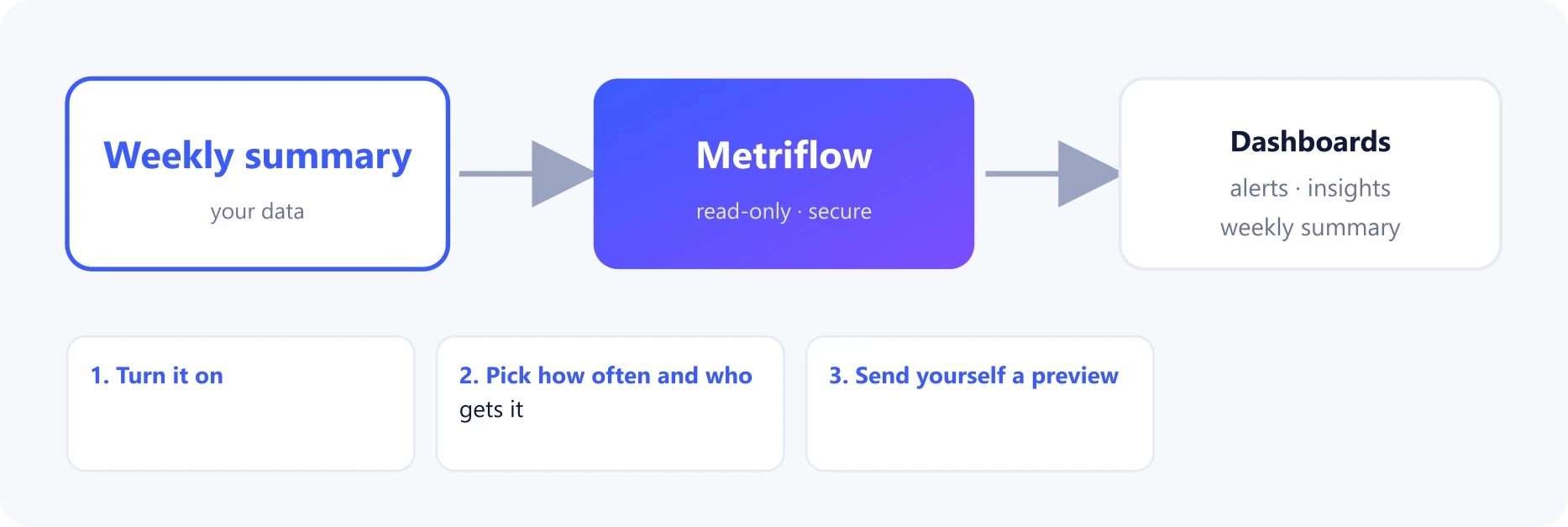
What you get
- One email per person, scoped to what they manage. Admins get the whole company, managers their teams, reps their own leads.
- The week's key numbers with the change against the week before, plus response time by rep.
- Optionally, the company-wide summary in your Slack channel.
Before you start
- A connected CRM, so there are numbers to summarize.
- Company admin access to Company Settings.
Step by step
1Turn it on
Go to Company Settings → Integrations → Summary report and switch it on.
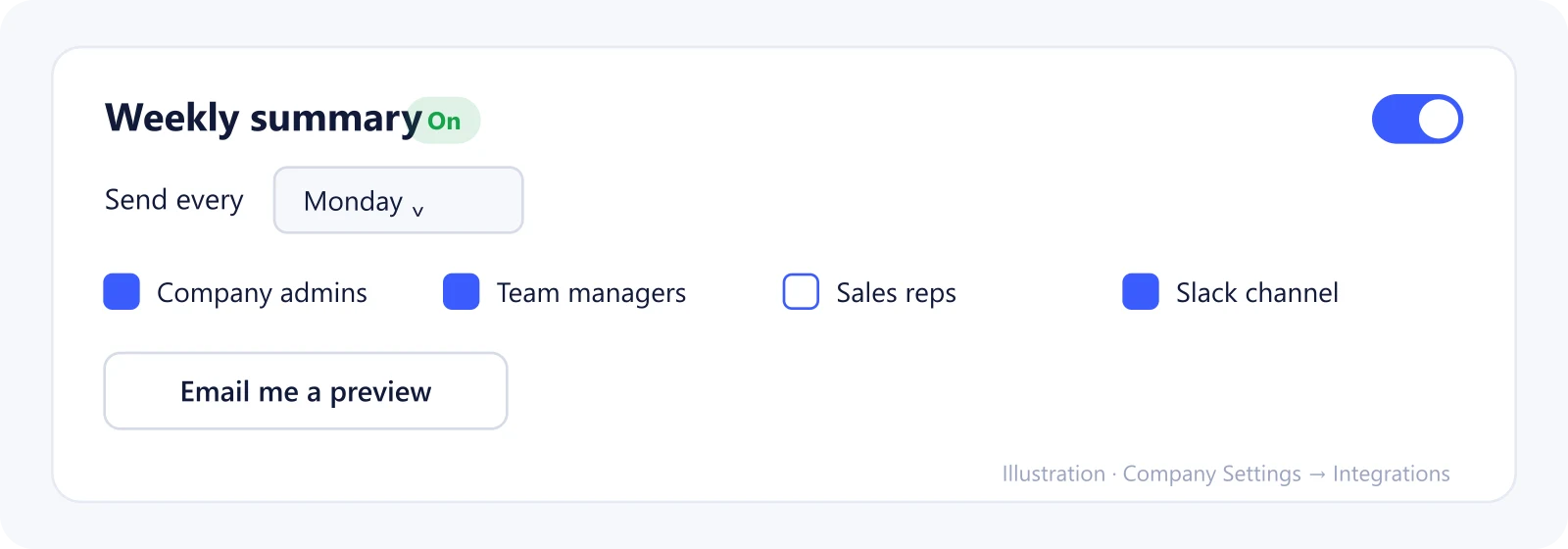
2Pick how often and who gets it
Choose how often it goes out: every day, every few days (2 to 14), every week on the day you pick, or every month on the date you pick (1 to 28). It goes out in the morning and covers the time since the previous report.
Choose who gets it: company admins, team managers, sales reps, and optionally your Slack channel.
3Send yourself a preview
Click Email me a preview to see exactly what arrives.
What Metriflow reads
- The same numbers as your dashboards, for the last 7 days, filtered by each person's permissions.
Questions
What time does it arrive?
In the morning (UTC) of the day you pick.
Can reps get it?
Yes. Tick Sales reps and each rep gets a summary of their own leads only.
Privacy and security
Each person sees only what their role allows. The Slack post contains company-wide totals. Privacy Policy
Related guides
Ready to connect?
Sign in and go to Company Settings → Integrations. Questions? Contact us.
Open Integrations