

How to get Metriflow alerts in Slack
Get new lead alerts, such as leads not answered in time, stuck leads or MQLs left waiting, plus the weekly summary, straight into a Slack channel. Setup takes about two minutes and needs no Slack app approval: you paste a channel webhook link.
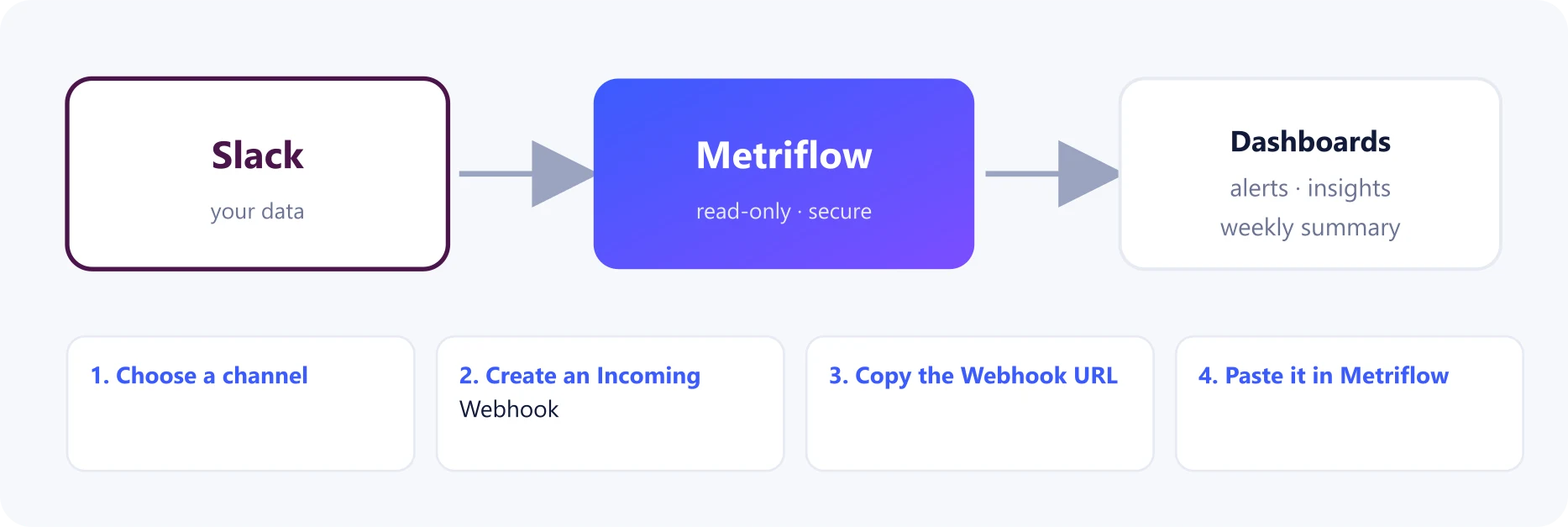
What you get
- One message per daily run listing the new alerts, each linking to the lead in Metriflow.
- The weekly summary posted to the channel, if you choose it.
Before you start
- A Growth or Business plan (Slack alerts are included in them).
- Permission to add an app or a webhook to the Slack channel.
Step by step
1Choose a channel
In Slack, pick or create the channel for alerts, for example #sales-alerts.
2Create an Incoming Webhook
In Slack, open Apps, search for 'Incoming WebHooks' and click Add to Slack (or Configuration → Add to Slack).
Choose the channel and click Add Incoming WebHooks integration. (Alternatively: create a Slack app at api.slack.com/apps, turn on Incoming Webhooks and add one for the channel.)
3Copy the Webhook URL
Copy the Webhook URL. It starts with https://hooks.slack.com/services/…
Treat it like a password: anyone with it can post to the channel.
4Paste it in Metriflow
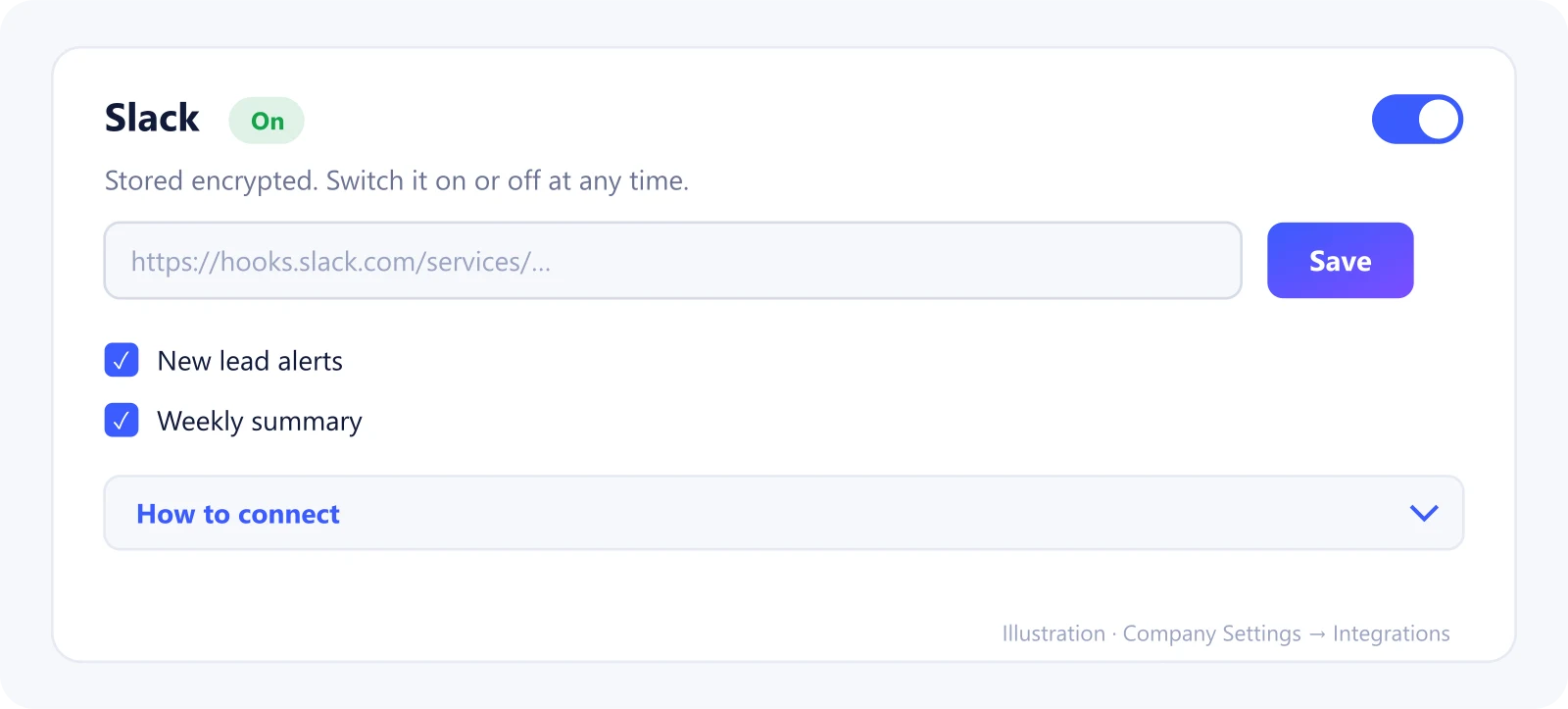
Go to Company Settings → Integrations → Slack, paste the URL and click Save.
Choose what to post: new lead alerts and/or the weekly summary.
5Send a test message
Click Send a test message and check the channel.
Use the switch on the card to turn Slack on or off at any time.
What Metriflow reads
- Alert messages include the alert text, which names the lead, and a link to it in Metriflow.
- The weekly summary contains totals only.
Questions
Can I send alerts to more than one channel?
Right now there's one channel per company. Tell us if you need more.
Will Slack get flooded?
No. New alerts are grouped into one message per run, with the first 10 listed and a link to the rest.
How do I stop it?
Turn Slack off with the switch, or click Disconnect to delete the webhook.
Privacy and security
The webhook URL is stored encrypted. Anyone in the channel can see the alert texts, so choose a channel for the people who handle these leads. Privacy Policy
Related guides
Ready to connect?
Sign in and go to Company Settings → Integrations. Questions? Contact us.
Open Integrations