

How to connect HubSpot to Metriflow
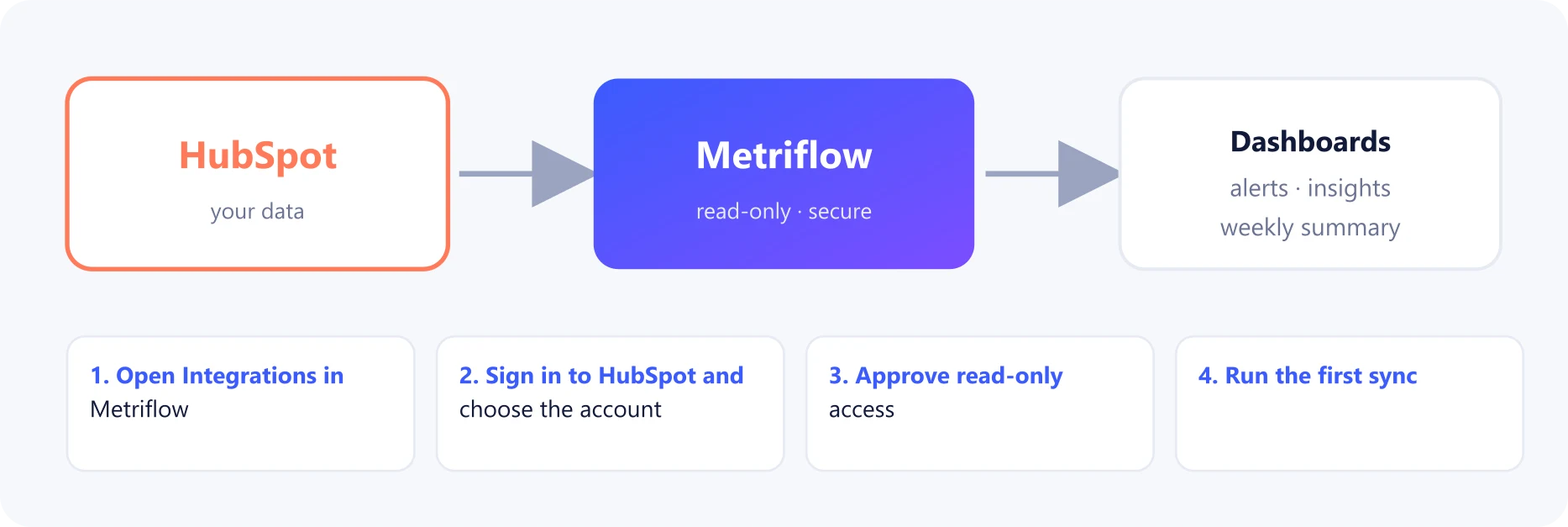
Metriflow connects to HubSpot with read-only access and turns your contacts, deals and activity into one dashboard. You can see how fast every lead was answered, which leads are stuck, and which campaigns really brought in pipeline and revenue. The connection takes a few minutes and is done once, by one admin, for the whole company.
What you get
- Leads Audit: response time per rep, leads answered late or not at all, stuck leads and follow-up depth.
- Revenue reports: pipeline and closed-won revenue by source and campaign.
- Alerts by email, in the app and in Slack, before a lead goes cold.
- Team pages for managers, and a personal page for every rep.
Before you start
- A Metriflow company account. You're its company admin.
- A HubSpot user with Super Admin rights. Even better: a dedicated integration user with access to contacts, companies and deals.
- About 5 minutes, plus the time the first sync takes.
Step by step
1Open Integrations in Metriflow
Sign in to Metriflow and go to Company Settings → Integrations.
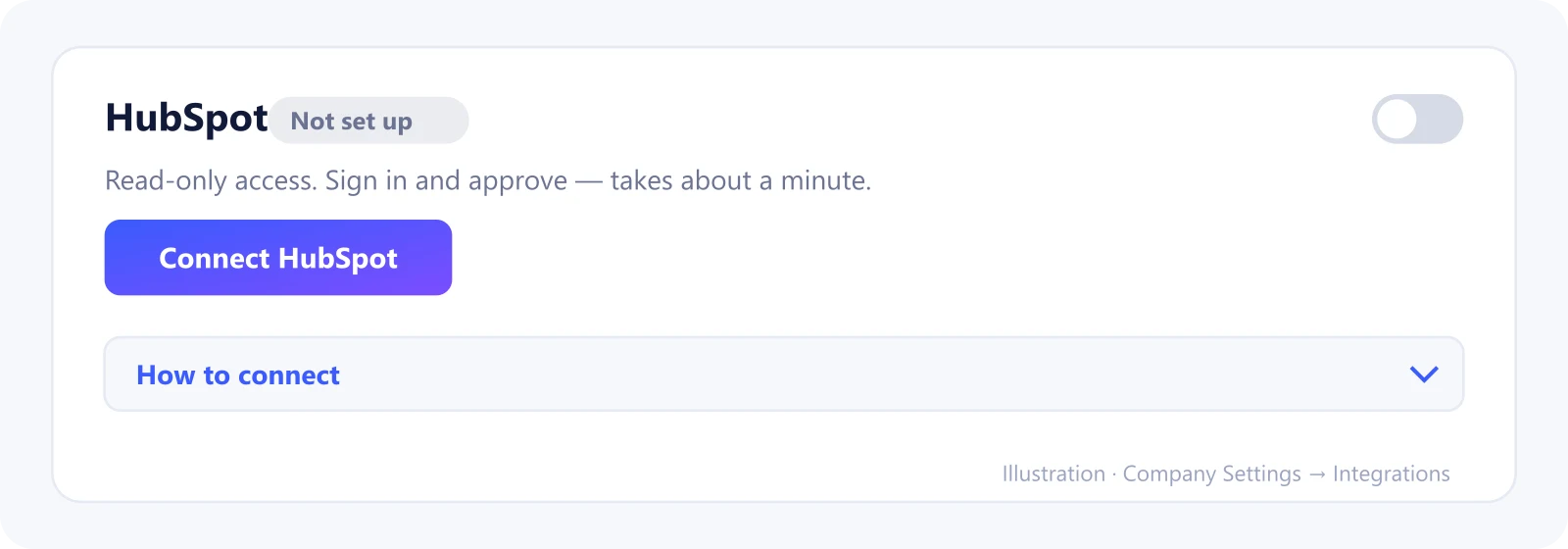
In the CRM connection card, find HubSpot.
2Sign in to HubSpot and choose the account
Click Connect HubSpot.
Sign in to HubSpot if you aren't already, and choose the HubSpot account (portal) to connect.
3Approve read-only access
HubSpot shows the permissions Metriflow asks for. They're all read-only: contacts, companies, deals, owners and the properties' definitions. Email bodies are optional.
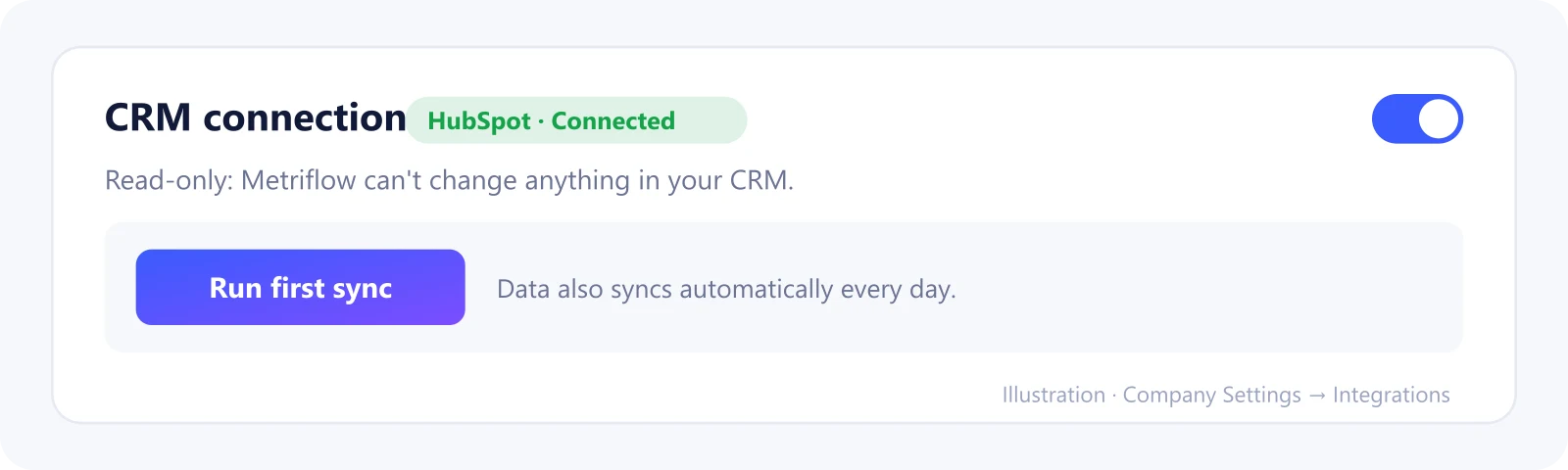
Click Connect app. Metriflow can't create, change or delete anything in HubSpot.
4Run the first sync
You're back in Metriflow and the card shows HubSpot · Connected.
Click Run first sync. It brings in the last 12 months of owners, companies, contacts (with status history), deals, emails, calls and meetings. Large accounts take several rounds, and the button keeps going until it's done.
5Check the field mapping
Go to Company Settings → Field mapping.
Metriflow suggests what each lead status and deal stage means: which stages count as won, which status means "in contact", and so on. Adjust anything that doesn't match how your team works.
6Set up teams and reps
In Users & teams, mark which HubSpot owners are sales reps, put them into teams, and invite managers and reps.
Each person sees exactly what their role allows.
What Metriflow reads
- Owners (sales reps), companies, contacts and their lead status and lifecycle history.
- Deals with their pipeline stages, amounts and dates.
- Emails, calls and meetings linked to contacts. These are used for response time and follow-up depth.
- Source and campaign fields (original source and drill-downs), for marketing attribution.
Questions
Does Metriflow change anything in HubSpot?
No. The access is read-only. It never edits, deletes or sends anything, and never contacts your leads.
How often does it sync?
Automatically every day. A company admin can also click Sync now at any time.
Our lead statuses have custom names. Will it work?
Yes. Metriflow suggests a mapping after the first sync, and you set what each of your statuses and stages means in Field mapping.
Can I pause it?
Yes. Use the On/Off switch on the CRM card. Turning it off pauses syncing and keeps your data.
How do I disconnect?
Click Disconnect on the CRM card. Syncing stops right away, and the synced data is deleted after 30 days unless you reconnect. You can also uninstall the app in HubSpot under Connected apps.
Privacy and security
Metriflow reads only what it needs for the dashboards, stores the access tokens encrypted, and keeps every company's data separate. Team permissions decide who sees what, including full email content. Privacy Policy
Related guides
Ready to connect?
Sign in and go to Company Settings → Integrations. Questions? Contact us.
Open Integrations