

How to turn on AI insights with your own Claude
Metriflow works fully without AI. When you connect your company's own Claude account, every dashboard gets an AI analysis of what's working, what's leaking and what to fix first, with specific reps, campaigns and numbers. You can also ask your own questions about the data.
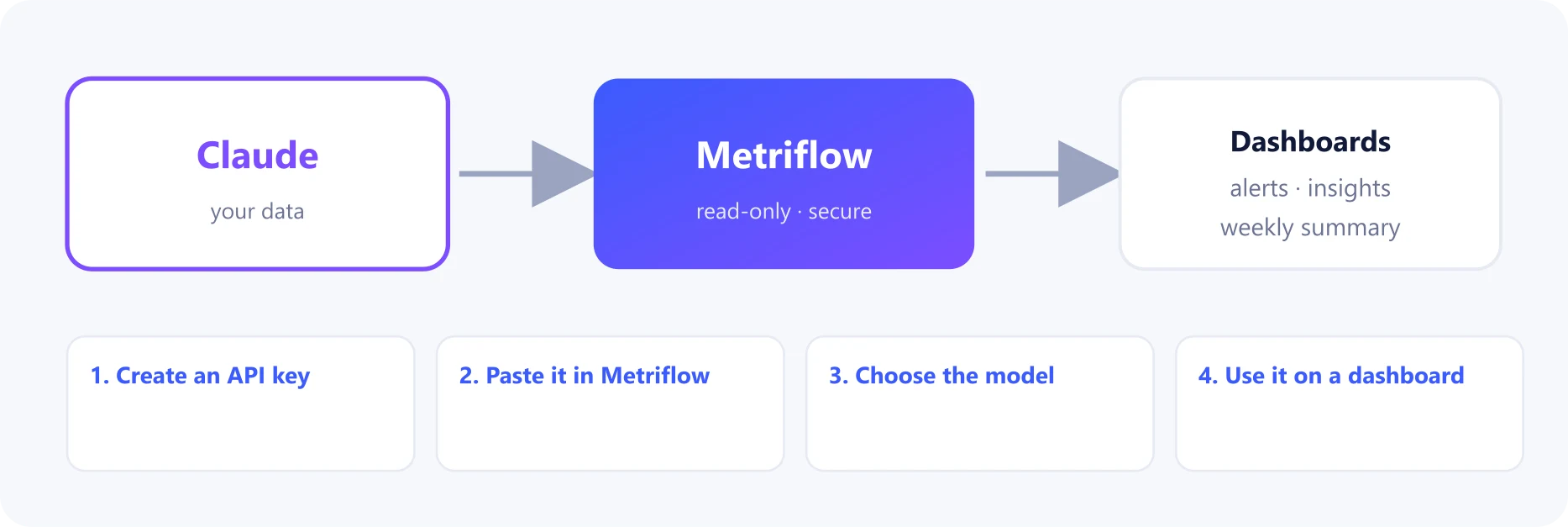
What you get
- An AI insights widget on the dashboards: 4–6 insights, each with a recommended action.
- A question box: ask about the data on the page in plain language.
- A short AI paragraph at the top of the weekly summary.
Before you start
- An Anthropic account for your company (console.anthropic.com) with billing set up. Usage is billed to that account.
Step by step
1Create an API key
In console.anthropic.com go to Settings → API keys → Create key, and name it 'Metriflow'.
Copy the key. It starts with sk-ant- and is shown only once.
2Paste it in Metriflow
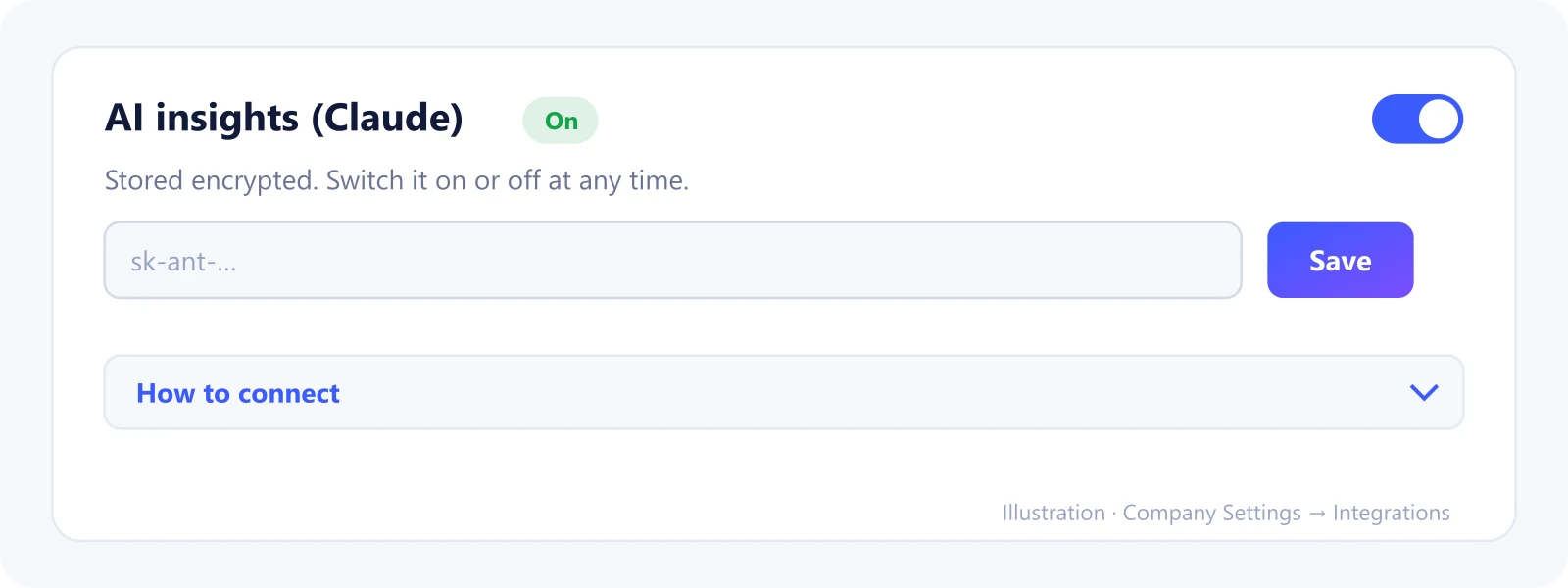
Go to Company Settings → Integrations → AI insights (Claude), paste the key and click Save.
Click Test the key to check it works.
3Choose the model
Claude Sonnet is the recommended balance of quality and cost. Opus is the most capable, Haiku the fastest and cheapest.
4Use it on a dashboard
Open Overview or Leads Audit and click Analyze this page in the AI insights widget.
Results are saved for 12 hours. Click Refresh for a new analysis, or ask your own question.
What Metriflow reads
- Only aggregated numbers are sent: totals, rates and response times, with the names of reps and campaigns.
- Lead contact details and email or message content are never sent.
- Each analysis covers exactly what the viewer can see on that page.
Questions
How much does it cost?
It depends on how often you analyze. Each analysis is one request to Claude, billed to your Anthropic account. Results are cached for 12 hours to keep costs low.
Is our data used to train models?
No. Metriflow doesn't train models, and API data isn't used for training under Anthropic's commercial terms.
Privacy and security
Your key is stored encrypted and used only for your company. You can switch AI off or delete the key at any time. Privacy Policy
Related guides
Ready to connect?
Sign in and go to Company Settings → Integrations. Questions? Contact us.
Open Integrations