

How to connect Google Ads to Metriflow
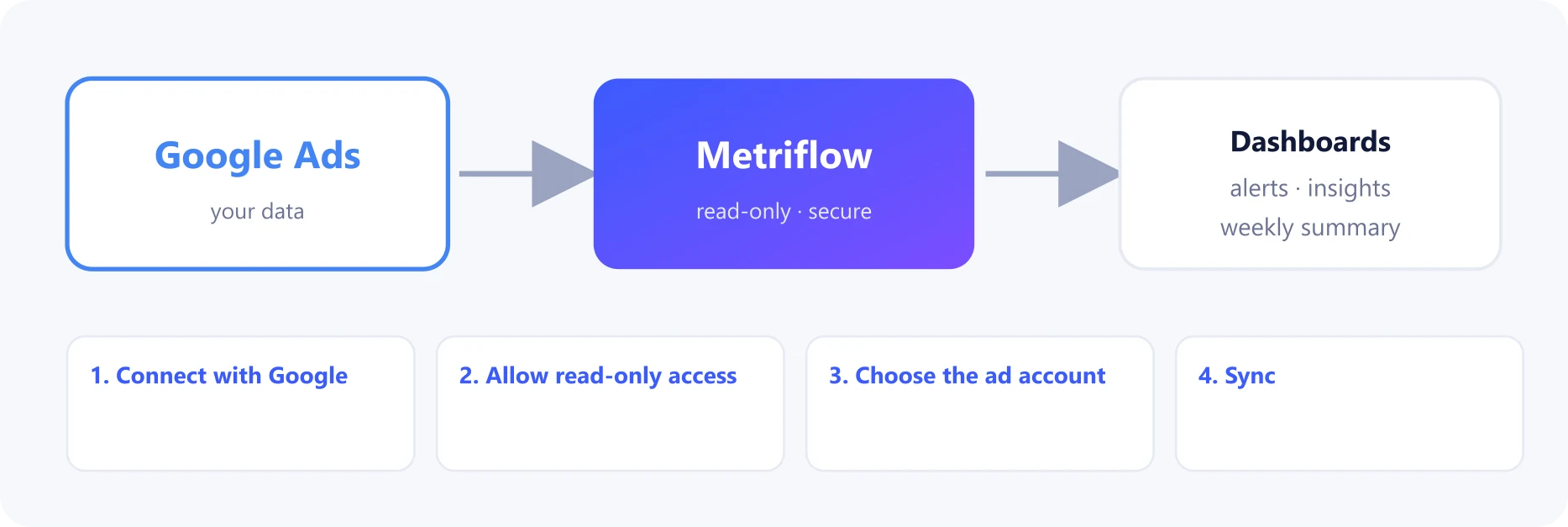
Connect Google Ads to see what your paid leads really cost: spend per campaign next to the leads it brought, how sales handled them, and the pipeline and revenue that followed.
What you get
- Daily spend, clicks, impressions and conversions per campaign.
- Cost per lead, per SQL and per deal on the Paid Campaigns and Analytics pages.
Before you start
- A Growth or Business plan.
- Access to the Google Ads account, or to the manager (MCC) account above it.
Step by step
1Connect with Google
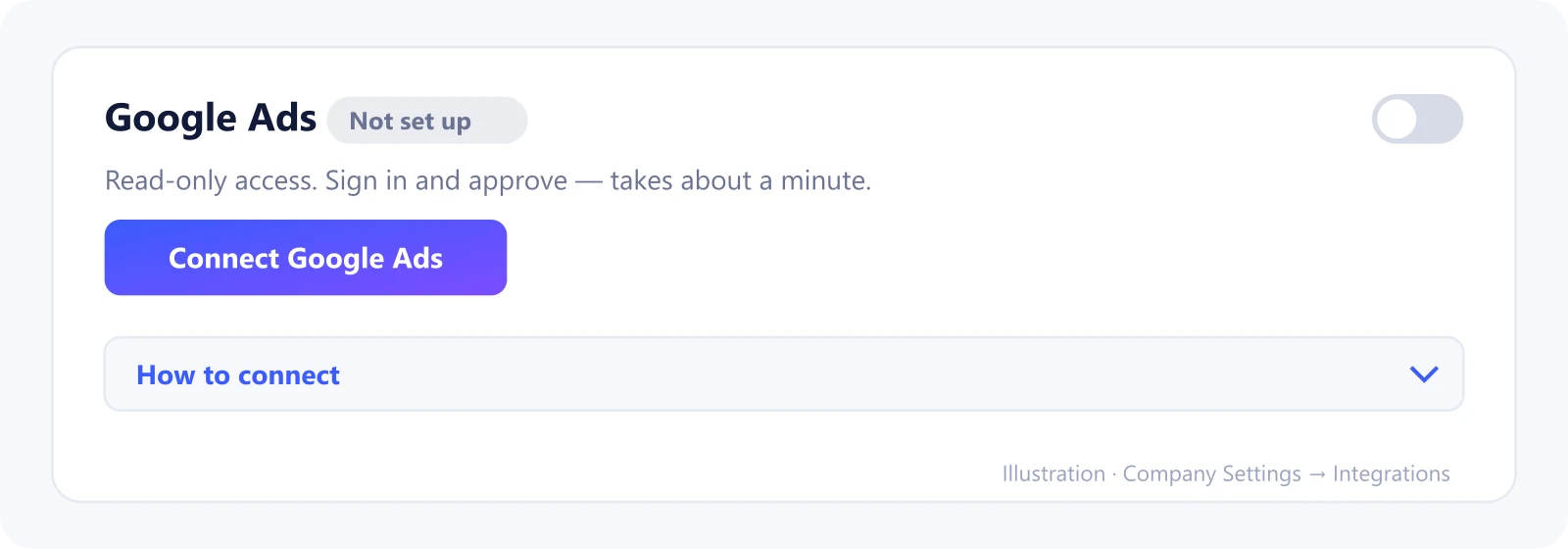
Go to Company Settings → Integrations → Google Ads and click Connect Google Ads.
Sign in with the Google account that has access to your ads.
2Allow read-only access
Google asks to let Metriflow view your Google Ads data. Click Allow.
3Choose the ad account
Back in Metriflow, click Choose and pick the ad account to sync.
If you reach it through a manager account, enter the manager account ID.
4Sync
Click Sync now, or wait for the daily sync. The first sync covers the last 180 days.
What Metriflow reads
- Campaign names and IDs, and daily spend, clicks, impressions and conversions.
- Spend is matched to your CRM campaigns by name or UTM campaign.
Questions
Our CRM campaign names differ from Google Ads. What then?
Use the same campaign name, or the same utm_campaign value, in both. That's how Metriflow matches spend to leads.
Privacy and security
Read-only access. Disconnecting deletes the ad data Metriflow synced. Privacy Policy
Related guides
Ready to connect?
Sign in and go to Company Settings → Integrations. Questions? Contact us.
Open Integrations